User Seats
Add users, assign roles, control access across workspaces.
For Hub admins. Workspace owners can manage users within their own workspace (if given permission).
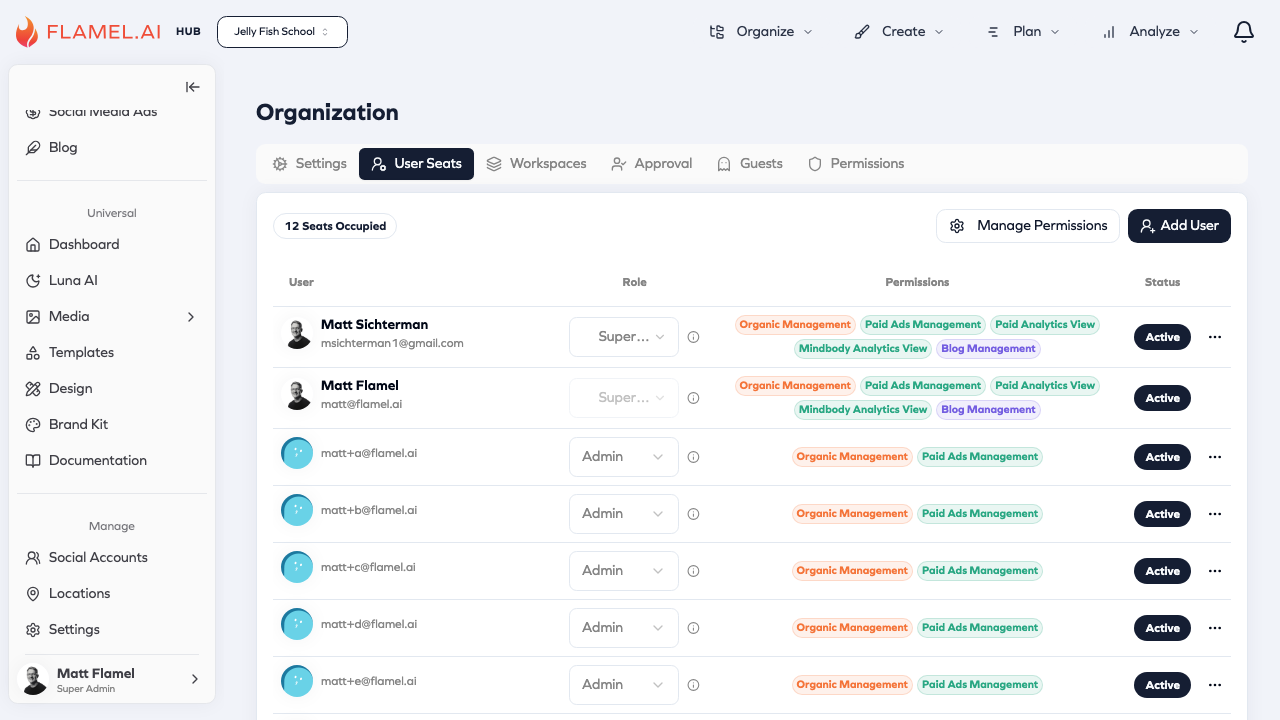
Roles
Flamel has four roles that determine what users can access:
| Role | Access Level |
|---|---|
| Super Admin | Manage organization settings, users, and unlimited access to all workspaces, solutions, and features. |
| Admin | Manage all content and settings for the workspaces you are assigned. |
| Editor | Create, edit, and publish content across solutions for the workspaces you are assigned. |
| Viewer | View content, leave comments, and browse the workspaces you are assigned. |
Adding Users
Click Add User to invite someone. Enter their email address — Flamel sends an invitation with setup instructions. New users appear with "pending" status until they accept.
Managing Users
From the user list you can:
- Change roles — Click the role dropdown next to any user. Changes take effect immediately.
- Remove users — Click the menu icon and select remove. Access is revoked immediately; content they created remains.
Permissions
The Manage Permissions button opens the Permissions tab where you control which features are available to users. Permissions control feature availability; roles control what users can do with those features.